Guide
Docker: "bind: address already in use" on Mac (lsof won't tell you which container)
July 15, 20264 min read
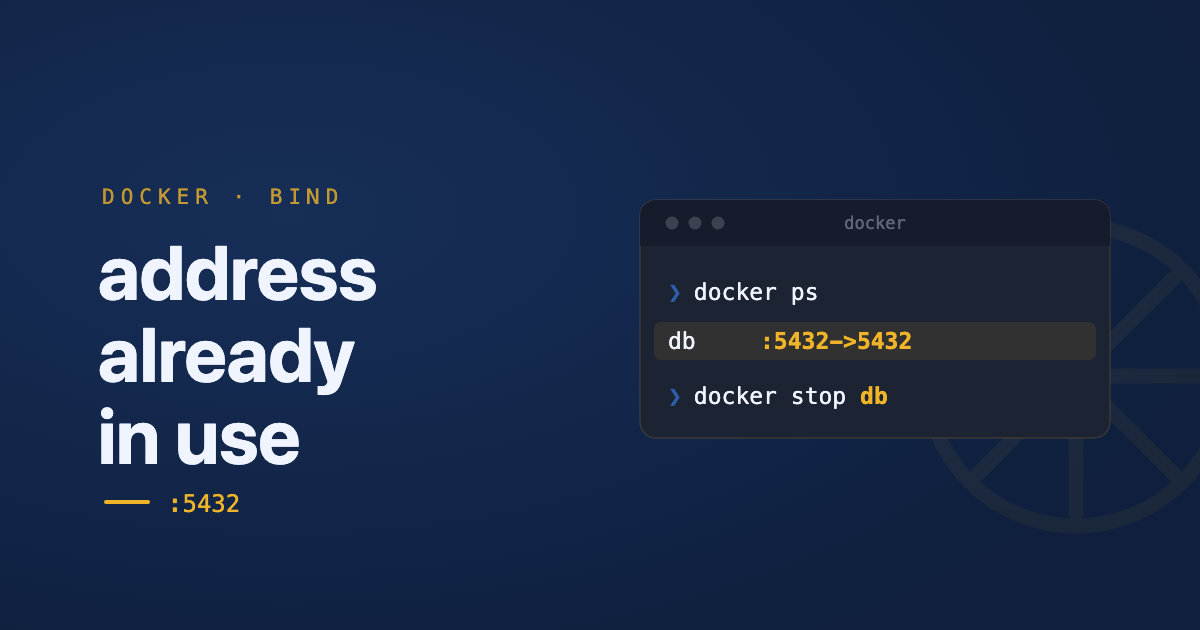
You run docker run -p 5432:5432 postgres or docker compose up, and you get:
Error response from daemon: driver failed programming external connectivity on endpoint db: Bind for 0.0.0.0:5432 failed: port is already allocatedOr, depending on the Docker version:
Error starting userland proxy: listen tcp4 0.0.0.0:5432: bind: address already in useSame problem, two error strings. Something already has port 5432. Your instinct is probably lsof -i :5432, and on Mac, that instinct is about to send you down the wrong path.
Why lsof lies to you on Mac
On Linux, Docker binds ports through a lightweight docker-proxy process, and lsof shows it plainly. On Mac, Docker Desktop runs containers inside a lightweight VM, and all container networking is proxied through Docker Desktop’s own backend process. So lsof -i :5432 doesn’t show you postgres, or even a container name. It shows:
COMMAND      PID   USER   FD   TYPE  DEVICE SIZE/OFF NODE NAME
com.docke 1842 ben 41u IPv4 0x... 0t0 TCP *:5432 (LISTEN)com.docker.backend, truncated to com.docke. That’s not the container, it’s Docker Desktop’s networking layer for every container you have running. Killing that PID doesn’t stop the conflicting container, it can drop networking for all of them, and Docker Desktop just relaunches it anyway. This is the point where the lsof → kill playbook that works for a normal dev server breaks down completely for Docker.
Find the real culprit
Ask Docker directly instead of the OS:
docker ps --format "table {{.Names}}\t{{.Image}}\t{{.Ports}}"This lists every running container with its name, image, and published ports in one table. Scan the PORTS column for 5432 (or whatever port is conflicting) and you’ll have the actual container name.
If you want to filter directly instead of scanning by eye:
docker ps --filter "publish=5432"Stop it the right way
Once you have the container name:
docker stop my-old-postgresDon’t reach for docker kill first, same logic as SIGTERM vs SIGKILL on a normal process: docker stop sends a graceful shutdown signal first (SIGTERM, then SIGKILL after a timeout), giving the container’s process a chance to close database connections and flush writes cleanly. docker kill skips straight to SIGKILL.
If it’s a Compose-managed stack, stop the whole project instead of one container:
docker compose -p my-project downUsing docker stop <container-id> on a container Compose manages will often just get restarted by Compose’s restart policy, right back into the same port. Stop the project, not the container.
Keep in mind docker compose down only reaches containers started by that specific Compose project. If the port conflict is coming from a different project, or from a container started with plain docker run, this command won’t touch it, you’ll need to find and stop that one separately.
When it’s a stale container, not a running one
Sometimes docker ps comes back empty for that port and the error still happens. Check stopped containers too:
docker ps -aAn exited container can still be holding a port mapping until it’s removed. Clean up stopped containers you don’t need:
docker container pruneStill stuck: restart Docker Desktop’s VM
If you’ve stopped every container and pruned the stale ones, and the port is still reported as allocated, Docker Desktop’s own VM can end up holding a stale proxy binding. Restarting it clears that state without touching your containers’ data:
killall Docker && open -a DockerWait for Docker Desktop to fully restart before retrying. Treat this as the fallback after docker ps/docker stop/docker container prune, not the first thing to reach for.
When it’s not Docker at all
If neither docker ps nor docker ps -a shows anything on that port, it’s a plain host process, not a container, squatting there. That’s a different playbook: lsof -i :5432 on the host, then kill, covered step by step in Port 3000 already in use on your Mac.
Quick FAQ
Port already allocated but docker ps shows nothing running.
Check exited containers with docker ps -a, then docker container prune to remove ones you don’t need. A stopped container can still hold its port mapping until it’s cleaned up.
docker compose down ran but the port is still in use.
You likely have orphaned containers from a previous Compose file version. Run docker compose down --remove-orphans.
How do I find which container is using a port, fast?
docker ps --filter "publish=PORT", replacing PORT with the number. One line, no scanning a table by eye.
See this instead of typing it
Bosun lives in your menu bar and shows every open port on your Mac, live, mapped to the process behind it. One-click kill, SIGTERM first. Useful the first time this happens. Genuinely useful the fifth time it happens in one afternoon.