Guide
Docker Desktop eating CPU on your Mac? How to find (and kill) the culprit
July 15, 20264 min read
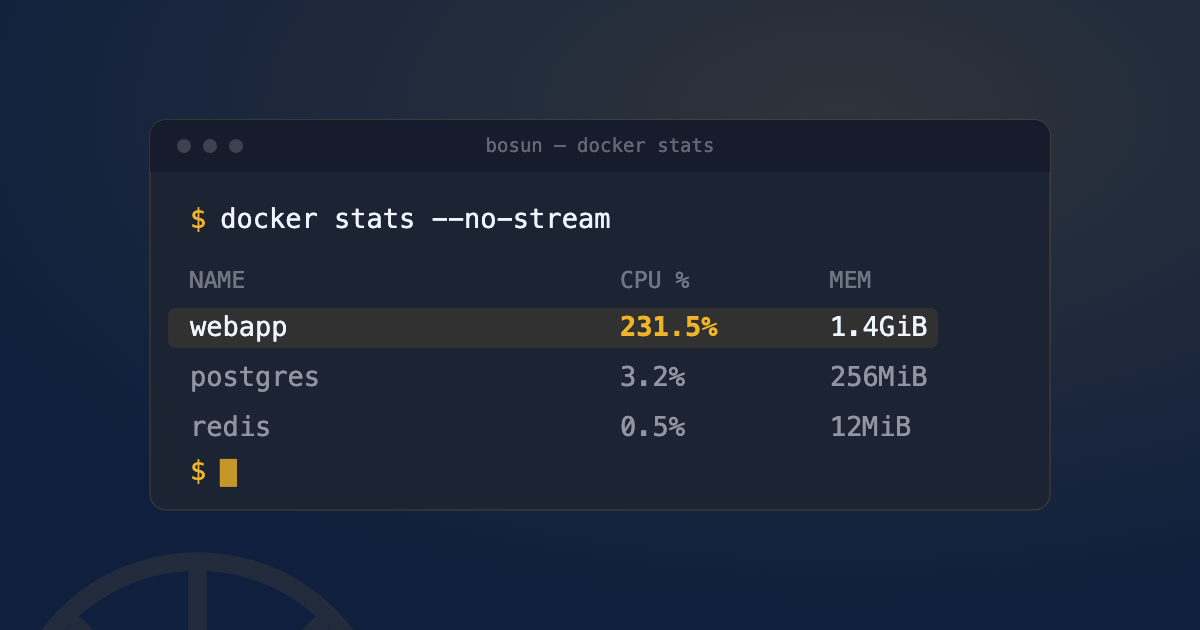
Fan spinning up, Mac getting warm, and when you check Activity Monitor, com.docker.backend (or Docker Desktop itself) is sitting near the top of the CPU column. Sometimes with containers running, sometimes with none running at all.
Why Docker Desktop spikes your Mac’s CPU
Docker Desktop on Mac doesn’t run containers natively, it runs a lightweight Linux VM in the background and your containers live inside that. com.docker.backend is the process managing that VM and its networking, and a few things reliably push its CPU usage up:
- Waking from sleep. The VM sometimes doesn’t resync cleanly and spins trying to catch up.
- An idle container you forgot was running. Even “idle” containers can poll, log, or health-check on an interval, and it adds up with several running at once.
- A stuck VM backend. Occasionally the virtualization layer itself gets into a bad state independent of anything your containers are doing.
None of these are something you broke. It’s closer to “background OS-level VM overhead,” and it needs a different diagnosis than a normal runaway process.
Step 1: is it Docker overall, or one specific container?
Open Activity Monitor and search for docker or com.docker. If com.docker.backend itself is the one pegged, high, and no single container process shows unusual usage, the problem is likely the VM layer, not your workload, jump to the fixes below.
If you want a live, per-container breakdown instead, Docker has this built in:
docker statsThis updates in real time and shows CPU%, memory, and network I/O per running container, so you can see immediately if it’s one specific container hogging resources rather than Docker as a whole.
Also worth checking, since it’s the most common cause of “nothing should be running, why is CPU high”:
docker psIf this lists containers you forgot about, from an old docker compose up in a terminal tab you closed, or a project you’re not actively working on, that’s very likely your answer.
Real fixes
Stop what you forgot was running. The single most common fix. docker ps, find anything you don’t currently need, docker stop <name> or docker compose -p <project> down. (If you’re also getting port conflicts from forgotten containers, not just high CPU, that’s covered step by step in Docker: “bind: address already in use” on Mac.)
Lower the resource limits. Docker Desktop → Settings → Resources. If it’s been left at defaults, especially on a machine with limited cores, capping CPUs and memory can prevent a single heavy container from dragging the whole system down, at the cost of that container running slower.
Check the VM backend setting. Settings → General → “Choose file sharing implementation” and virtualization backend options vary by Docker Desktop version, but switching between Apple’s native virtualization framework and the alternative (where available) has resolved persistent VM-level CPU issues for plenty of people, worth trying if nothing else here helps.
Update Docker Desktop. VM backend performance bugs get fixed between releases regularly enough that “update and see if it’s still happening” isn’t a throwaway suggestion, it’s a genuinely common fix.
Restart the Docker daemon, not your whole Mac, just Docker:
killall Docker && open -a DockerThis clears a stuck VM state without touching your containers’ data, and is worth trying before anything more drastic.
Spotting it faster next time
Once it’s fixed, the annoying part is that “check Activity Monitor, then cross-reference docker ps to figure out which container that PID actually belongs to” is a multi-step ritual every time this happens again.
That’s the specific gap Bosun closes: it shows every container’s actual name and Compose project next to its CPU, memory, and uptime, in the menu bar, without opening Activity Monitor or running docker stats first. It won’t fix a VM-level CPU spike for you, but it cuts straight to “which container is this, and do I still need it running” the moment you notice your fan spin up.
Quick FAQ
Why does com.docker.backend use high CPU with no containers running?
Usually a VM-level issue rather than anything in your containers, most often triggered by waking from sleep. Restarting Docker Desktop (killall Docker && open -a Docker) resolves it most of the time; if it recurs constantly, check for a pending Docker Desktop update.
Is it safe to force-quit Docker Desktop on Mac? Yes. Containers stop cleanly enough for normal use, though anything mid-write without proper shutdown handling carries the same small risk force-quitting any app does. For a graceful stop first, quit from the Docker Desktop menu bar icon instead of force-quitting when you have the option.
Does quitting Docker Desktop free up CPU and RAM immediately? Yes, quitting shuts down the VM entirely, releasing the resources it was using. If you need Docker again shortly after, expect a short VM startup delay the next time you launch it.
See this instead of typing it
Bosun lives in your menu bar and shows every open port on your Mac, live, mapped to the process behind it. One-click kill, SIGTERM first. Useful the first time this happens. Genuinely useful the fifth time it happens in one afternoon.